Getting Started
Welcome to the technical documentation for AnyDesk. To initiate your first remote support session:
- Download AnyDesk: Obtain the correct binary from our Download Center.
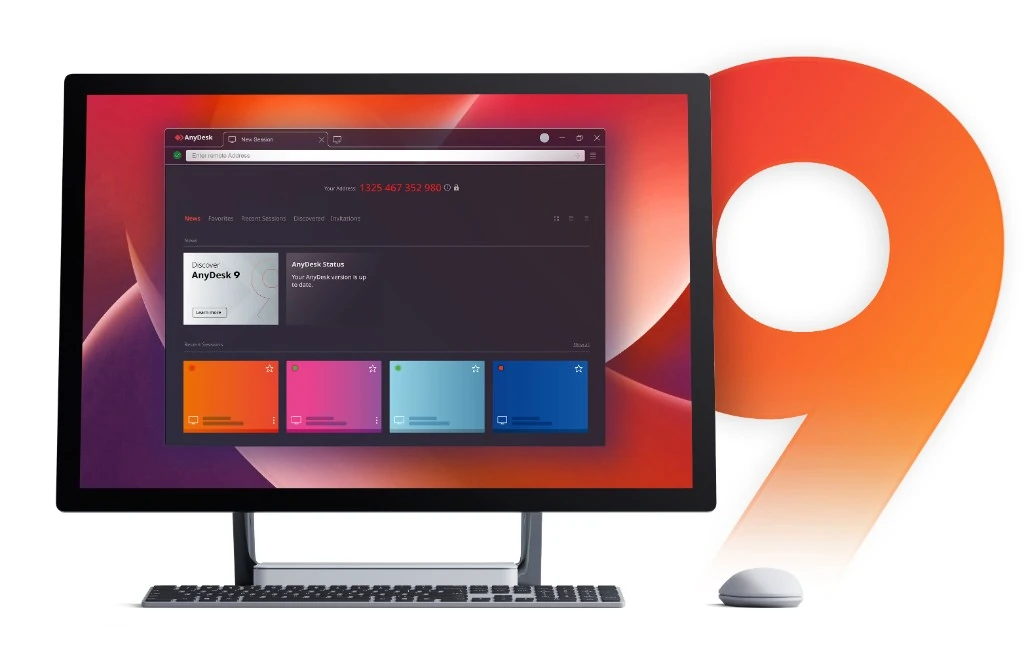
- Launch Executable: Run the AnyDesk app. Note the 9-digit AnyDesk Address assigned to the endpoint.
- Establish Connection: Input the target Address into the "Remote Desk" field and initiate the TCP/UDP connection.
- Authentication: The remote client must accept the request, or you must provide the unattended access password.
Installation & Activation
Windows MSI/EXE Deployment
For enterprise environments, AnyDesk can be deployed silently using command-line parameters. This is ideal for setting up unattended access remote maintenance across a domain.
macOS Deployment
Deploy the .dmg via MDM solutions. Note that macOS requires explicit user consent for Screen Recording and Accessibility APIs via System Settings.
License Activation
Apply your license key globally using the command line or via the my.anydesk.com portal for custom client generation.
Remote Connection Troubleshooting
If the AnyDesk client fails to establish a connection to the AnyDesk network (status indicator remains red or displays "anynet_unknown"), verify the following:
- Firewall Configuration: Ensure outbound traffic is allowed on TCP ports 80, 443, and 6568.
- Direct Connection: For optimal performance, allow UDP port 7070 for direct peer-to-peer routing.
- Proxy Settings: If operating behind a corporate proxy, configure the proxy settings within the AnyDesk app (Settings > Connection).
- DNS Resolution: Ensure the client can resolve `*.net.anydesk.com`.
Remote Desktop Issues
Display Rendering Anomalies
If encountering black screens or graphical glitches, adjust the hardware acceleration settings. Navigate to Settings > Display > Hardware Acceleration and force Direct3D or OpenGL rendering.
Input Capture Failures
If keyboard or mouse inputs are not transmitting, verify that the remote client has granted the necessary permissions in the security tab, and ensure no conflicting overlay software is running.
Frequently Asked Questions
What encryption standard does AnyDesk use?
AnyDesk secures all connections using TLS 1.2 technology and RSA 2048 asymmetric key exchange, ensuring perfect forward secrecy.
Can I restrict access to specific IP addresses?
Yes, via the Access Control List (ACL) in the security settings, you can whitelist specific AnyDesk IDs or namespaces.
Is unattended access secure?
Yes, unattended access remote maintenance is secured via a strong password and can be further protected by enabling Two-Factor Authentication (2FA).
News & Releases
Review the latest changelogs and security advisories for the AnyDesk app.
- Version 8.0.14: Security patch addressing minor vulnerabilities and improving DeskRT codec efficiency.
- macOS Client 7.3.0: Full native support for Apple Silicon M3 architecture.
- Mobile App Update: Enhanced MDM integration capabilities for Android Enterprise and iOS.
About & Legal
Privacy Policy: Review our GDPR-compliant data handling procedures and privacy policy documentation.
Sitemap: Home | Download | Help Center
Contact Us: For enterprise licensing, technical support escalations, or security inquiries, contact our authorized distributor team.